

You've been there. You spend an hour prompting ChatGPT to generate a comprehensive report complete with data tables, Python code snippets, and complex mathematical formulas. Then you highlight the text, hit Ctrl+C, paste it into Microsoft Word, and watch your hard work turn into an absolute disaster. LaTeX equations paste as raw, unreadable code. Chemical formulas look like gibberish. Tables completely lose their borders and alignment. The pristine Markdown structure you saw in the browser is gone. If you need to export multiple ChatGPT conversations to a Word document without losing hours to manual formatting fixes, you need a completely different approach.
Before diving into the mechanics, let's look at what the final output should actually look like when done correctly.
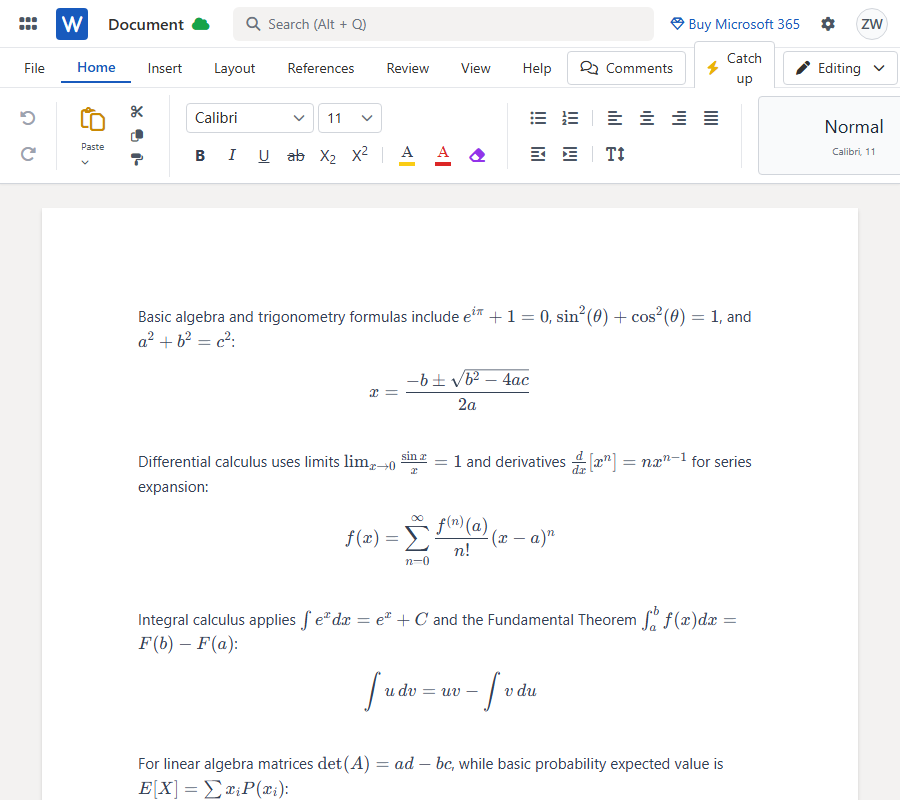
When you export AI content the right way, complex mathematical formulas display flawlessly. More importantly, they convert into native, fully editable Word equations (OMML)—meaning you can tweak the variables directly inside Word. Tables render perfectly aligned with no layout breaks, and your entire document structure stays intact.
Why does transferring content from ChatGPT to Word feel so broken? It comes down to how web browsers and word processors handle code. Microsoft Word does not natively recognize or parse raw LaTeX or Markdown directly from a clipboard. When you drag your mouse to highlight text and copy it, you are stripping away critical structural data. The rich text rendering you see on the ChatGPT web page does not translate to native Word formatting.
If you absolutely must copy manually, you MUST click the dedicated "Copy" icon inside the AI chat interface. Do not drag your mouse to highlight. Do not press Ctrl+C directly on the webpage. Highlighting manually guarantees your math formulas, tables, and code blocks will easily break.
Basic algebra and trigonometry formulas include $e^{i\pi} + 1 = 0$, $\sin^2(\theta) + \cos^2(\theta) = 1$, and $a^2+b^2=c^2$:
$$ x = \frac{-b \pm \sqrt{b^2 - 4ac}}{2a} $$
Differential calculus uses limits $\lim_{x \to 0} \frac{\sin x}{x} = 1$ and derivatives $\frac{d}{dx}[x^n] = nx^{n-1}$ for series expansion:
$$ f(x) = \sum_{n=0}^{\infty} \frac{f^{(n)}(a)}{n!} (x-a)^n $$
Integral calculus applies $\int e^x dx = e^x + C$ and the Fundamental Theorem $\int_a^b f(x) dx = F(b) - F(a)$:
$$ \int u \, dv = uv - \int v \, du $$
For linear algebra matrices $\det(A) = ad-bc$, while basic probability expected value is $E[X] = \sum x_i P(x_i)$:
$$ P(A|B) = \frac{P(B|A)P(A)}{P(B)} $$
However, even with the copy button, pasting multiple long conversations is tedious and prone to error. The far superior method is utilizing a direct Share Link import.
After dealing with broken formatting for months, I shifted my workflow entirely to MarkDocx. It is a purpose-built tool specifically designed to parse AI chat conversations and export them cleanly into Word (.docx) or PDF.
Instead of fighting with the clipboard, you feed MarkDocx a Share Link. It bypasses the clipboard entirely, executing a one-click parsing process that automatically converts Markdown syntax, translates LaTeX into native Word formulas, and maps out tables exactly as the AI intended. It handles Gemini and Claude links just as effortlessly.
Here is the highly recommended method to export your conversations without dropping a single formatting tag.
Step 1: Generate Your Share Link
Inside your ChatGPT, Claude, or Gemini conversation, click the Share icon located in the interface. Generate the public link and copy it. Repeat this for any multiple conversations you need to process.
Step 2: Import via MarkDocx
Head over to MarkDocx. Paste your AI Chat Share Link directly into the input bar. Using the share link automatically parses the entire AI conversation and is the absolute best workflow to ensure zero data loss.
Step 3: Export to Word or PDF
Click the convert button. Select the .docx export option. Open your new file in Microsoft Word to find your tables intact, code blocks properly formatted, and native math equations ready for post-export editing.
Stop letting formatting errors slow down your workflow. By swapping out the manual highlight-and-paste method for a clean share link export, you preserve all the structural integrity of your AI-generated work. Try importing your next complex AI thread via a share link and see exactly how much editing time you save.