

Why Do Gemini Formulas Become Garbled When Copying and Pasting Them into Word? A Perfect Solution to Preserve LaTeX Format
When creating papers, teaching materials, or STEM reports using Gemini, everyone faces a frustrating problem at some point.
That is, "When you copy and paste a beautifully displayed mathematical formula or chemical equation into Word, its formatting instantly breaks."
The formula, which was so well-presented in Gemini, reverts to impersonal LaTeX code like \sqrt{x}, becomes a string of meaningless symbols (garbled text), or the layout collapses...
Many users currently resort to taking screenshots and pasting them as images, or retyping equations from scratch in Word's equation editor.
Actually, this isn't a Word bug or a Gemini bug. It's simply a matter of incorrect "copying" and "format conversion."
This article explains the shortest route to exporting Gemini equations in a 100% reproducible and editable format using MarkDocx, for those struggling with "Gemini equation copy and paste."
--
Why does direct copy and paste result in garbled text?
The equations displayed on the Gemini web page are rendered (drawn) in real time in the browser.
When you select and copy an equation with the mouse, in many cases only the "display text" is cut, and the structural data of the equation (Markdown/LaTeX) is lost. Word cannot correctly interpret this fragmented data, resulting in garbled text.
--
Golden Rule: Never select text with the mouse!
This is the most important pitfall, and one that 90% of users fall into, when using MarkDocx (or other Markdown converters).
- ❌** Incorrect Operation:**
Like a normal website, you drag and select text with the mouse and right-click to copy.
Result: Formatting is lost, and mathematical formulas become garbled.
- ✅** Correct Operation:**
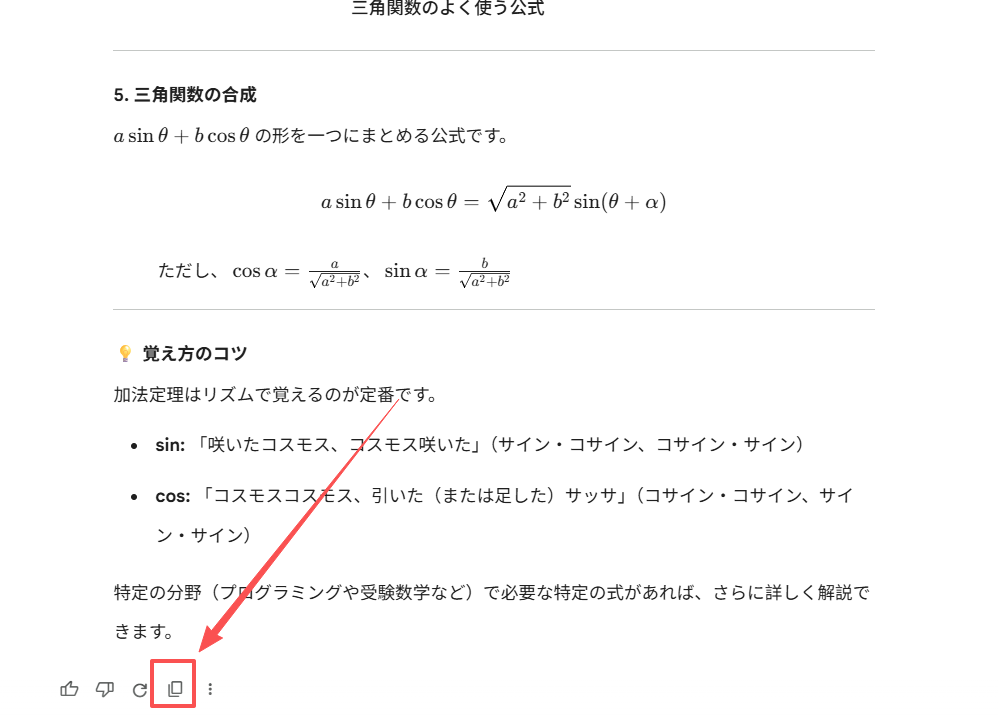
Click the "Copy" icon (clipboard symbol) directly below the answer block in Gemini.
By clicking this button, the system copies the "raw Markdown/LaTeX source code" to the clipboard. This is the "pure material" needed for perfect parsing in MarkDocx.
--
Done in 10 Seconds: Gemini to Word Conversion Guide
MarkDocx was designed to solve this problem. The procedure is very simple.
Step 1: Paste the Content
Open the MarkDocx home screen and paste the content obtained using Gemini's copy button into the input area on the left using Ctrl + V.
Step 2: Real-time Preview
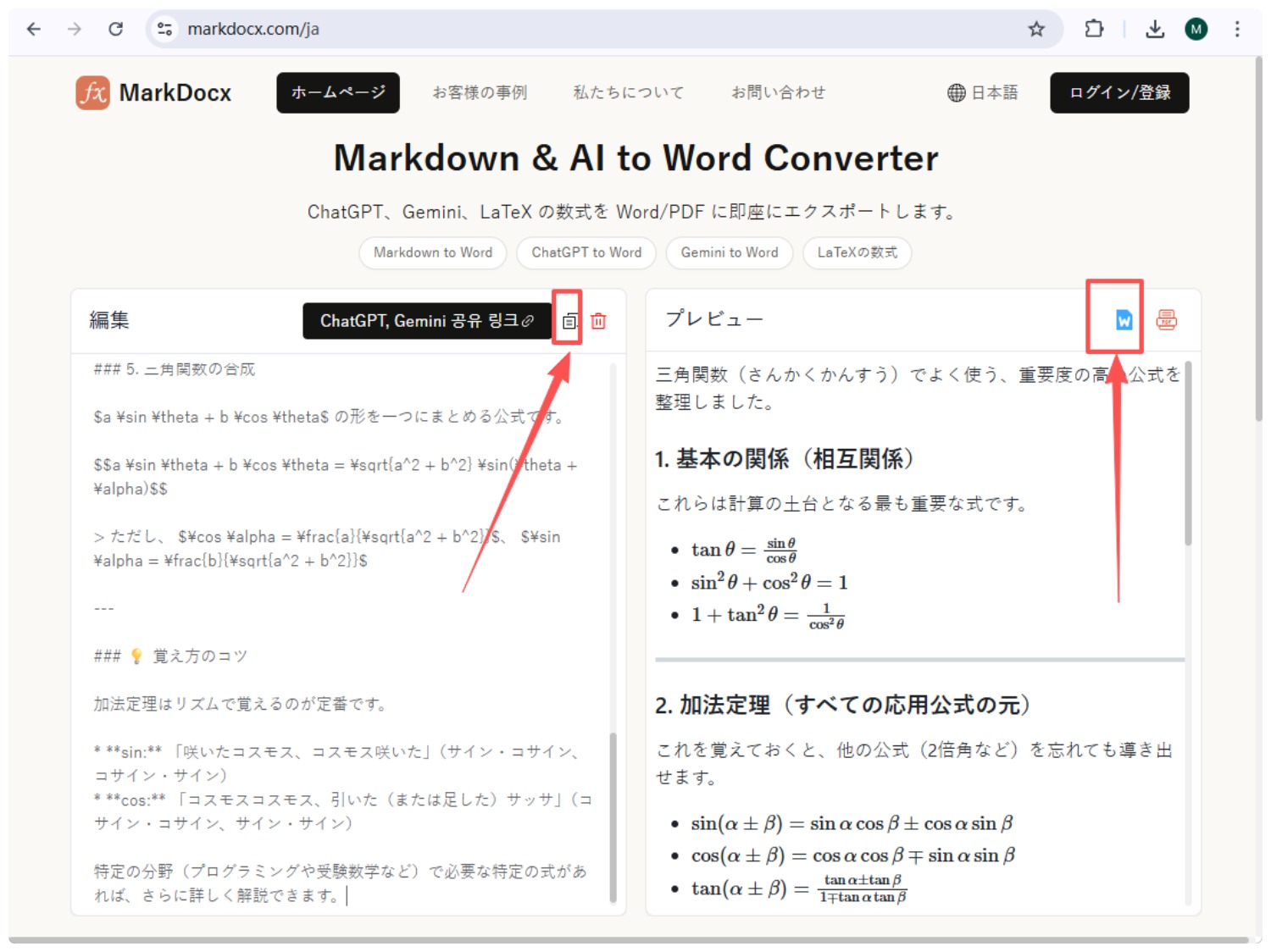
The preview window on the right will instantly display the formatted document.
- Mathematical Symbols: Automatically recognizes LaTeX syntax and reproduces it as a standard mathematical formula.
- Chemical Formulas: Automatically adjusts superscripts and subscripts.
- Code Blocks: Preserves syntax highlighting and indentation. #### Step 3: Export the Document
Click the Export button in the upper right corner.
- Select Word (.docx): Ideal for adjusting values or changing layouts later.
- Select PDF: For immediate printing or submission.
--
Can the exported Word equations be edited?
This is the most important point.
Word documents exported through MarkDocx are based on the Office native equation editor.
This means you can double-click an equation in Word to change variables or rewrite the equation. There's no need to go back to Gemini and start over.
--
Summary
Tools are there to support your content. MarkDocx's goal is to prevent you from wasting time on the unproductive task of "correcting formatting."
In the future, when you encounter problems copying and pasting equations in Gemini, remember these steps:
Click the copy button → Paste into MarkDocx → Save in Word. **
This alone should dramatically improve your report writing speed.