

The Nightmare of Pasting AI Math
You ask ChatGPT to solve a complex calculus problem or outline a physics concept. It gives you a beautiful, step-by-step breakdown right there on the screen. You highlight the text, paste it into Word, and suddenly you are staring at a massive wall of \int_{a}^{b} x^2 dx instead of a clean integral.
Chemical equations turn into completely uneditable gibberish. Data tables lose their alignment and collapse into a messy single column. Your structured Markdown formatting simply vanishes. If you have ever spent an hour manually retyping AI-generated math equations in Microsoft Word, you know exactly how frustrating this workflow is.
The Final Result You Actually Want
Before diving into the technical fix, look at what happens when you use a proper document generation workflow tailored for AI outputs.
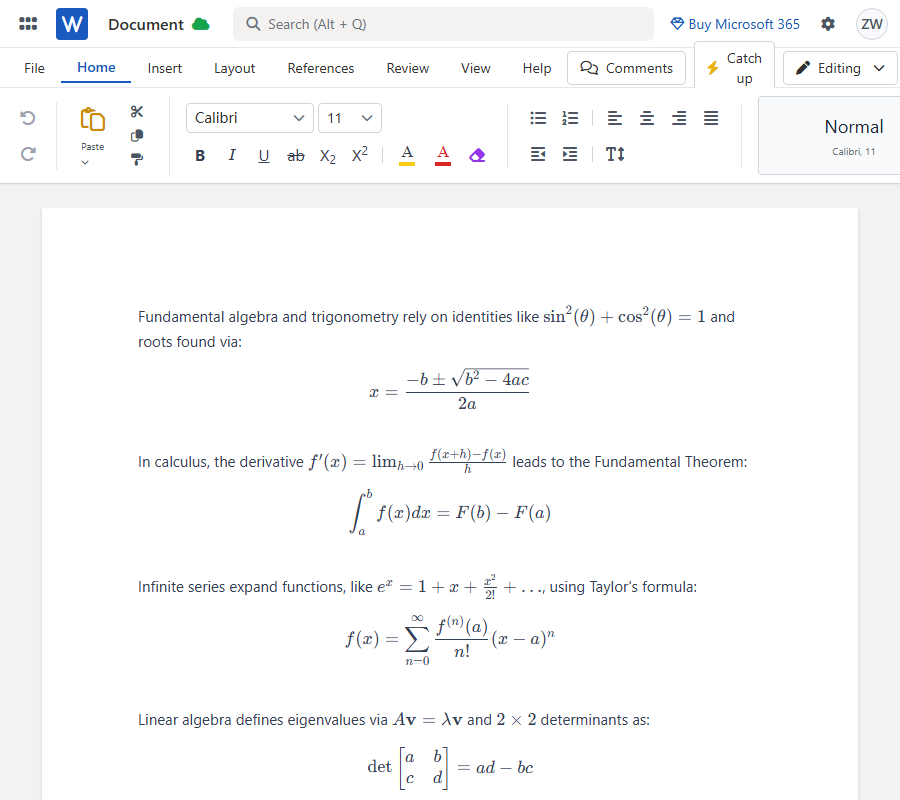
When done right:
- Complex formulas display flawlessly on the page.
- Word native equations are fully editable directly in the document.
- Tables render perfectly without layout breaks.
- The overall layout and rich-text formatting remain completely intact.
Why Traditional Copy-Pasting Fails
Microsoft Word does not natively recognize or parse raw LaTeX code. The beautiful math you see in your browser is rendered by web scripts (like KaTeX or MathJax). When you move that text to a desktop app, the rendering engine gets left behind.
More importantly, dragging your mouse to highlight text is the worst thing you can do. Mouse-highlighting loses critical structural data. If you absolutely must copy content manually, you MUST click the dedicated "Copy" button or clipboard icon inside the AI chat interface. Do not manually select text and press Ctrl+C. Doing so guarantees that math formulas, tables, and Markdown structures will break.
Even with the copy button, translating that data into Word requires manual tweaking. The true fix is skipping the clipboard entirely and using the share link import method.
A Workflow That Actually Works
I finally found a workflow that actually gets the job done without requiring endless manual formatting. It centers around MarkDocx, a purpose-built tool designed to convert AI chat conversations into Microsoft Word (.docx) and PDF formats.
Instead of wrestling with the clipboard, you feed the tool a direct link to your chat. It provides:
- Seamless share link import
- One-click parsing of complex syntax
- Automatic formatting conversion for LaTeX and chemical equations
- Native Word formulas (OMML) that you can tweak later
- High-quality PDF export support
Step-by-Step Tutorial
Step 1: Generate Your Content
Ask ChatGPT, Gemini, or Claude to generate your math formulas or data tables. Let the AI finish rendering the complete response. It might look something like this behind the scenes:
Fundamental algebra and trigonometry rely on identities like $\sin^2(\theta) + \cos^2(\theta) = 1$ and roots found via:
$$ x = \frac{-b \pm \sqrt{b^2 - 4ac}}{2a} $$
In calculus, the derivative $f'(x) = \lim_{h \to 0} \frac{f(x+h) - f(x)}{h}$ leads to the Fundamental Theorem:
$$ \int_{a}^{b} f(x) dx = F(b) - F(a) $$
Infinite series expand functions, like $e^x = 1 + x + \frac{x^2}{2!} + \dots$, using Taylor's formula:
$$ f(x) = \sum_{n=0}^{\infty} \frac{f^{(n)}(a)}{n!} (x-a)^n $$
Linear algebra defines eigenvalues via $A\mathbf{v} = \lambda\mathbf{v}$ and $2 \times 2$ determinants as:
$$ \det \begin{bmatrix} a & b \\ c & d \end{bmatrix} = ad - bc $$
Basic probability relies on Bayes' Theorem $P(A|B) = \frac{P(B|A)P(A)}{P(B)}$ and the binomial coefficient:
$$ \binom{n}{k} = \frac{n!}{k!(n-k)!} $$
Step 2: Create a Share Link (Highly Recommended)
Do not drag your mouse to highlight the text! Instead, locate the "Share" button in your AI chat interface (ChatGPT, Gemini, or Claude) and generate a public share link. This method captures the entire conversation flawlessly.
Step 3: Import into the Converter
Open MarkDocx and paste your share link directly into the input field. The software automatically parses the entire AI conversation, accurately grabbing all Markdown syntax, tables, and LaTeX equations without dropping structural data.
Step 4: Export to Word or PDF
Choose your desired format and export. If you select Word, your document will feature fully editable native equations and perfectly aligned tables. If you need a strict, unchangeable layout to send to colleagues, select the PDF format.