

Garbled Math Formulas from ChatGPT to Word? The Perfect Solution to Preserve LaTeX Formatting
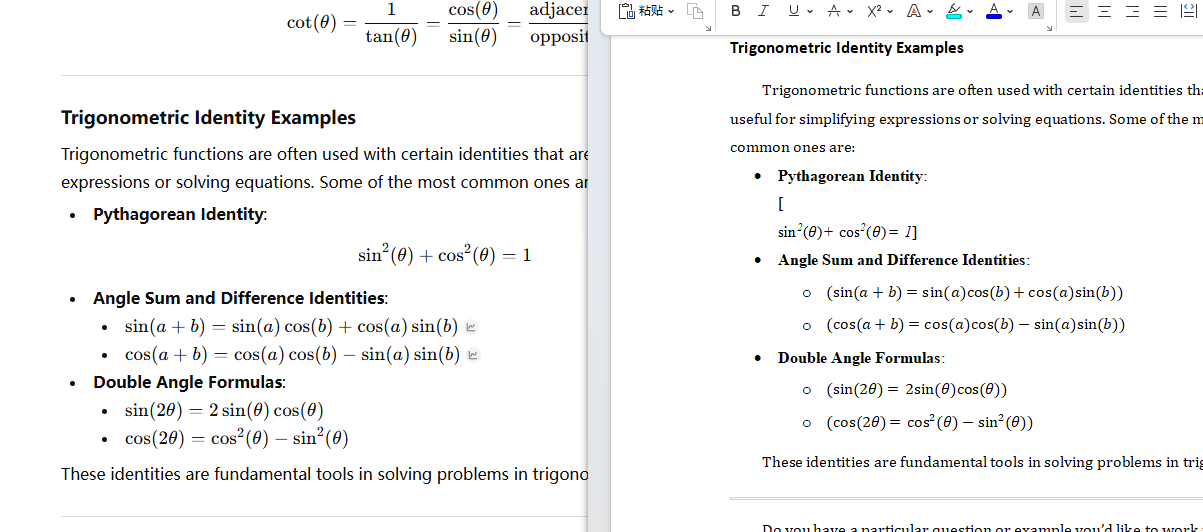
If you frequently use ChatGPT to assist with writing papers, lesson plans, or STEM assignments, you’ve definitely experienced that maddening moment:
You’re looking at perfect math formulas or chemical equations on the web page, but the moment you copy and paste them into Word, they instantly fall apart. They either turn into strange gibberish, revert to raw LaTeX code (like \sqrt{x}), or the entire layout collapses.
Many users resort to taking screenshots or, helplessly, retyping the formulas manually in Word.
Actually, this isn’t Word’s fault, nor is it a ChatGPT bug. It is simply data loss caused by incorrect formatting. In this post, we’ll get to the bottom of this and show you how to use MarkDocx with the correct workflow to achieve a 100% restored, fully editable document export.
Why does direct copying cause garbled text?
A quick technical explainer (feel free to skip if you know the tech):
The formulas displayed on ChatGPT’s web interface are rendered in real-time via MathJax or KaTeX. When you highlight text with your mouse to copy it, you are often just capturing the webpage’s "display layer" text while losing the underlying structured data (Markdown/LaTeX). Word can’t recognize this fragmented display text, so it naturally comes out as gibberish.
The Core Trick: Never Use Your Mouse to Select!
This is the most critical step when using MarkDocx (or any Markdown converter) and the reason why 90% of users fail to export correctly.
❌ The Wrong Habit:
Selecting text by clicking and dragging your mouse cursor over a large block of text, then right-clicking to copy—just like you would on a standard webpage.
Consequence: Formatting is lost, and formulas turn into garbled text.
✅ The Correct Approach:
Please click directly on the clipboard icon (Copy button) at the bottom of the ChatGPT response box.
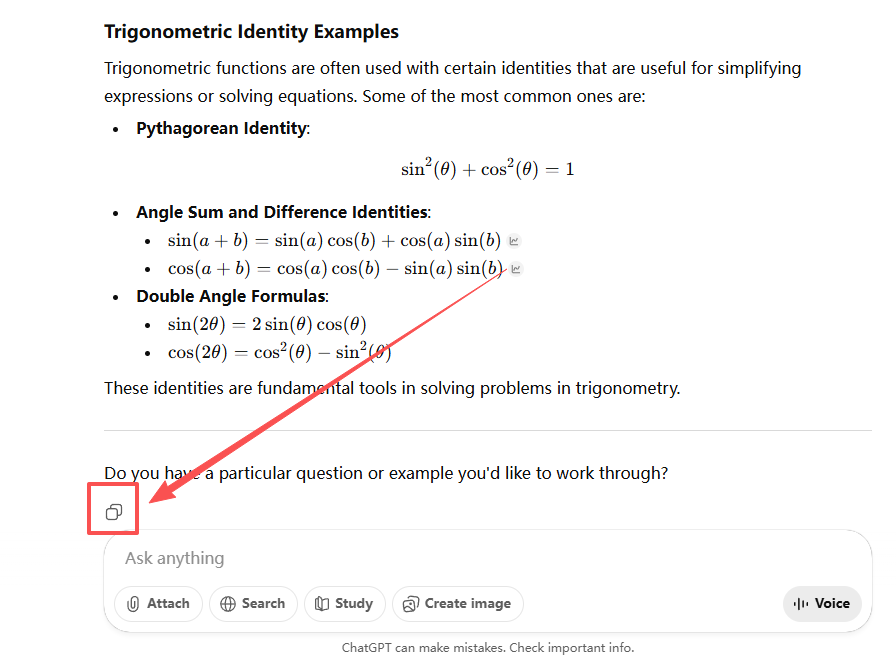
Clicking this button ensures the system captures the most primitive, clean Markdown source code into your clipboard. This is the "raw material" that MarkDocx needs to parse everything perfectly.
10-Second Guide: From ChatGPT to Word
MarkDocx was designed specifically to solve this problem. It only takes one step.
Step 1: Paste Content
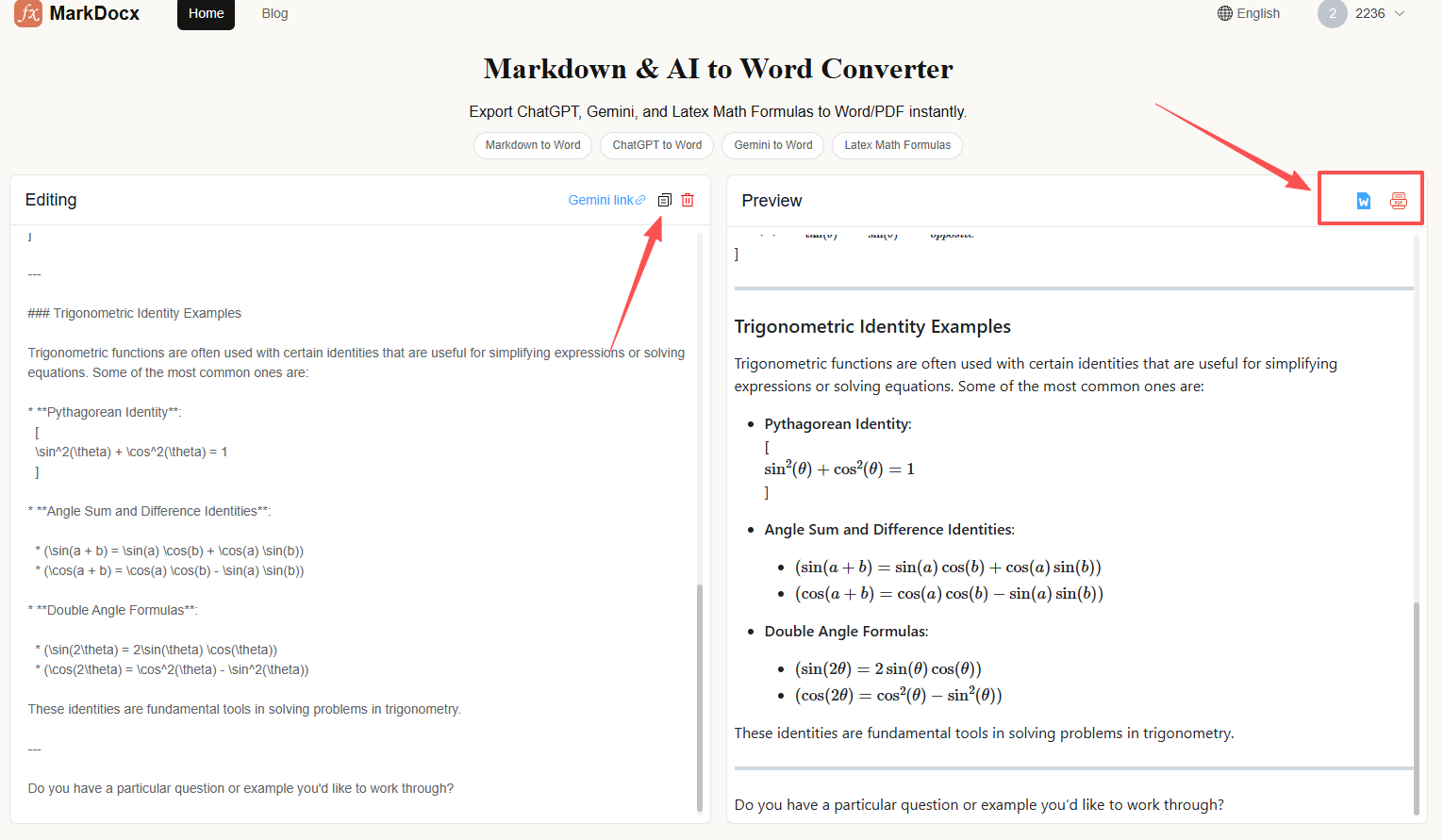
Open the MarkDocx homepage and paste the content you just copied via the button into the left-hand input box using Ctrl + V.
Step 2: Real-time Preview
You will see the preview window on the right instantly render the perfect document format.
- Math Formulas: Automatically recognizes LaTeX syntax and restores standard math equations.
- Chemical Equations: Automatically aligns subscripts and superscripts.
- Code Blocks: Retains syntax highlighting and indentation.
(Insert screenshot of MarkDocx split-screen interface showing a complex math formula perfectly rendered)
Step 3: Export Document
Click the Export button in the top right corner:
- Select Word (.docx): If you need to tweak parameters or adjust paper formatting later.
- Select PDF: If you need to print directly or archive the file.
Is the exported Word document "live"?
This is the question users care about most.
Word documents exported via MarkDocx contain fully editable math formulas (based on the native Office Equation Editor). This means if you need to modify a variable or change an $x$ to a $y$, you can simply double-click the formula in Word to edit it. You don't need to re-export the whole thing.
Summary
Tools exist to serve content. Our goal with MarkDocx is to ensure you don't waste time on the tedious task of "fixing formatting."
The next time you encounter garbled ChatGPT formulas, remember: Click Copy Button -> Paste to MarkDocx -> Export.
Hope this speeds up your paper writing and homework!